Robots.txt Explained: What to Block and What Not to Block
The robots.txt file sits at the root of your domain and tells search engine crawlers which paths they may request. It is one of the first files many bots fetch. Get it wrong and you can hide entire sections of your site from discovery.
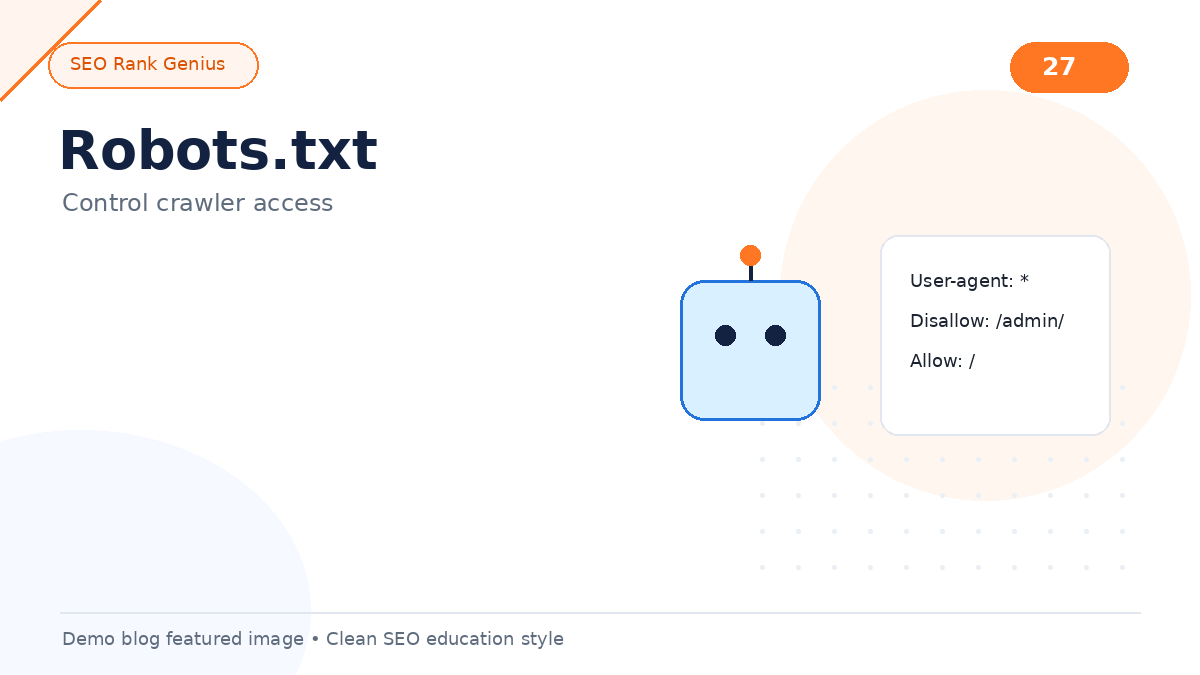
This article keeps robots.txt explained in practical terms for WordPress owners: what each rule means, safe defaults, and the blocking mistakes that still show up on live sites.
Quick Answer
Robots.txt uses Allow and Disallow directives to permit or restrict crawler requests to URL paths. It does not remove pages from the index by itself if they are linked elsewhere, but blocking critical assets or whole site sections can prevent proper rendering and crawling. Block admin areas and low-value internal search URLs; do not block CSS, JS, or public content you want indexed.
How Robots.txt Works
Crawlers like Googlebot read `https://yoursite.com/robots.txt` before crawling. The file uses rules grouped by user-agent.
Example structure:
“`
User-agent: *
Disallow: /wp-admin/
Allow: /wp-admin/admin-ajax.php
Sitemap: https://yoursite.com/wp-sitemap.xml
“`
Key ideas:
- User-agent: names the bot (`*` means all bots)
- Disallow: path prefix crawlers should not request
- Allow: exception within a disallowed path
- Sitemap: optional pointer to your XML sitemap
Robots.txt is a politeness protocol for well-behaved bots. Malicious scrapers may ignore it. Sensitive data should never be protected by robots alone.
What You Should Usually Block on WordPress
Safe, common blocks:
- `/wp-admin/` (except admin-ajax.php if needed for front-end features)
- `/wp-login.php` and repeated login attempt paths if your security plugin recommends it
- Internal site search URLs like `/?s=` or `/search/`
- Staging or development paths if accidentally exposed on production
- Faceted filter URLs that create infinite duplicate combinations on ecommerce sites
Pair robots rules with your XML sitemap guide so crawlers discover the URLs you actually want indexed.
What You Should Not Block
These blocks cause real SEO damage:
- CSS and JavaScript required to render pages (often under `/wp-content/themes/` and `/wp-includes/`)
- Entire `/wp-content/` directory
- Media that supports article comprehension when Google needs rendered HTML
- Public posts, categories, or product pages you expect in search results
Google needs to render pages like browsers do. Blocking assets can skew quality checks and delay indexing.
Robots.txt vs Meta Robots vs X-Robots-Tag
Three different tools, three different jobs:
| Method | Where | Effect |
|——–|——-|——–|
| robots.txt Disallow | Site root file | Stops crawl of URL path |
| meta robots noindex | HTML head | Keeps page out of index (if crawled) |
| X-Robots-Tag | HTTP header | Same as meta, useful for non-HTML files |
Important: if a URL is blocked in robots.txt, Google may not see a noindex tag on that URL. Use noindex when you want something out of the index but still need other signals managed carefully.
Testing Your Robots File
Before publishing changes:
1. Open the live robots.txt URL in an incognito window
2. Use Google Search Console robots.txt Tester (where available) or third-party validators
3. Inspect a blocked URL with URL Inspection to confirm expected behavior
4. After theme changes, confirm critical assets remain allowed
Add this check to your technical SEO checklist for WordPress whenever plugins touch robots or sitemap settings.
WordPress-Specific Scenarios
SEO plugin generates robots rules
Yoast, Rank Math, and others may append rules. Read the full combined file, not just manual edits.
Multisite or subdirectory installs
Each environment needs its own robots.txt. Subfolder installs use path prefixes in rules.
CDN or cache layers
Some hosts serve a static robots file separate from WordPress. Confirm which layer is authoritative.
Common Mistakes
- Copying a staging robots file that disallows `/` on production
- Blocking pagination or faceted URLs without addressing duplicates elsewhere
- Expecting robots.txt to hide private PDFs from determined users
- Forgetting to add Sitemap line after migrating domains
- Using disallow when noindex is the correct tool
When to Use Noindex Instead
Use noindex (or remove from sitemap) when:
- Thank-you pages should not appear in search
- Thin tag archives add no value
- Duplicate print-friendly URLs exist
Keep them crawlable if you need Google to see the noindex directive, unless you handle removal via Search Console for already-indexed URLs.
FAQ
Does blocking a URL in robots.txt remove it from Google?
Not reliably. If other sites link to it, Google may still index the URL without full content. Use noindex or removal tools when deindexing is the goal.
Should I block `/wp-json/`?
Usually no for public REST endpoints that themes or blocks rely on. Evaluate case by case; blocking required API paths can break features.
Can I block bad bots only?
You can target specific user-agents, but aggressive bots may ignore rules. Combine with server firewall or rate limiting for abuse.
Where do I edit robots.txt on WordPress?
Via SEO plugin UI, your host control panel, or a physical file at the web root. Only one authoritative file should serve at `/robots.txt`.
How does robots.txt relate to crawl budget?
Blocking low-value URLs helps bots spend requests on important pages on large sites. Small blogs rarely need aggressive crawl budget tuning.
Final Thoughts
Robots.txt is small but powerful. Allow public content and rendering assets, block admin noise and internal search clutter, and test after every change. Combine with sitemaps, canonicals, and monitoring so crawlers see the site you intend.
Run the SEO Rank Genius demo to catch structural and linking issues robots rules alone cannot solve: demo.seorankgenius.com.